
IBO Stream X / Streaming troubleshooting / 2026
IPTV Audio Out of Sync? 9 Practical Fixes for Sound Delay in 2026
Your screen shows someone speaking, but the words arrive a moment later. Or you hear the line before their lips move. Here is how to pinpoint the delay—and fix the right part of your setup.
What does “IPTV audio out of sync” actually mean?
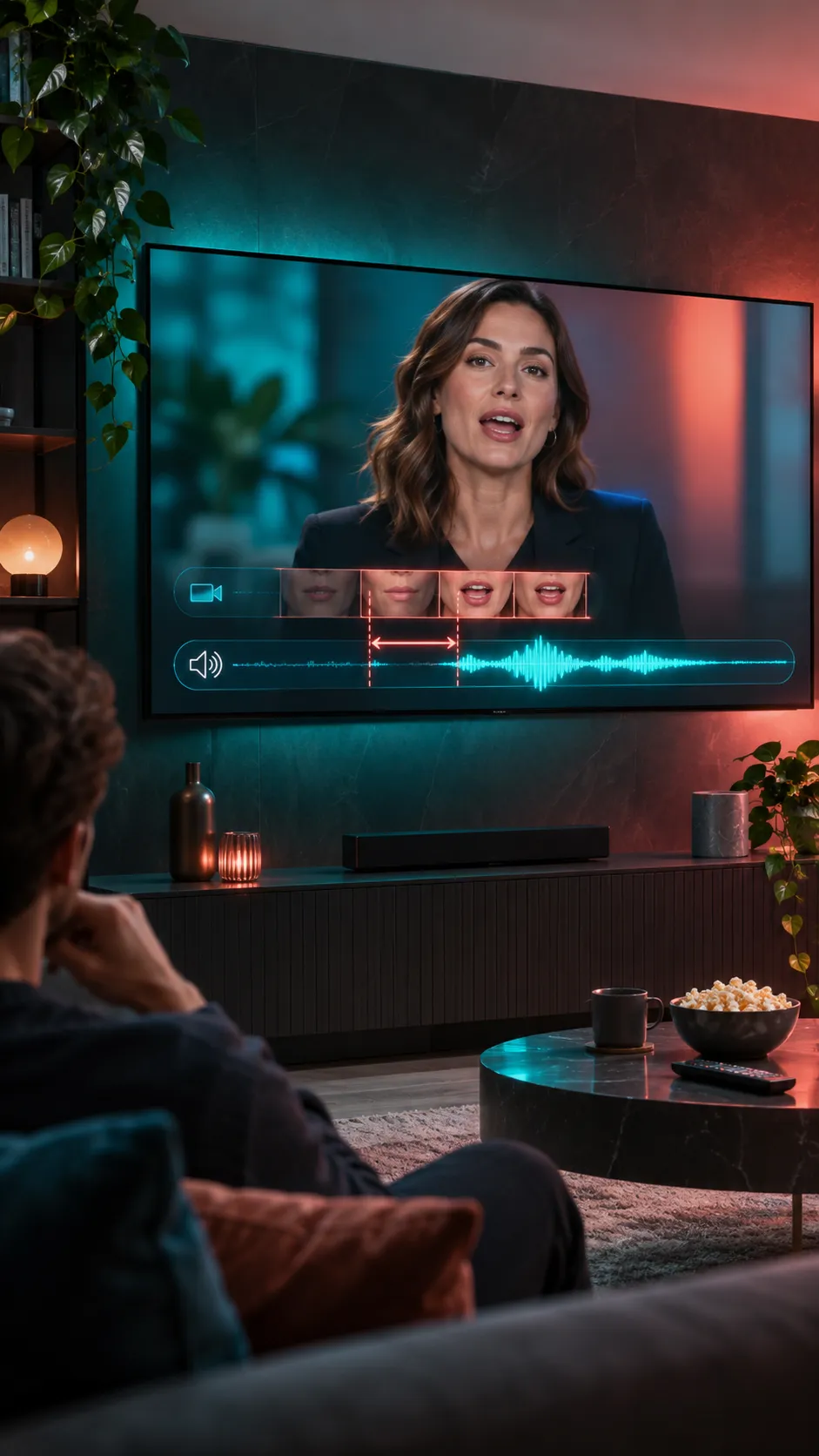
Audio/video synchronization—usually shortened to A/V sync or lip sync—is the timing relationship between the image and the sound. When it breaks, dialogue no longer matches the speaker’s mouth. You might notice it immediately during a news interview, but not during music or a landscape scene.
The confusing part is that there is no single cause. A TV needs to decode video, process the picture, decode sound, and sometimes pass that sound through a soundbar, receiver, or Bluetooth headset. Those steps do not always finish at exactly the same time. A badly timed source file or unstable playback can create a similar symptom.
That is why a universal “change this one setting” answer rarely works. The fastest route is to identify where the delay begins.
The two-minute test before you change settings
Pick a scene with clear speech and keep your volume at a comfortable level. Now run three simple comparisons. The answers tell you which fixes deserve your time.
Play a different video or channel in the same IPTV app. Is the delay present in both?
Try a legitimate video in another app on the same TV or streaming device. Does it also lag?
Use the TV’s internal speakers instead of a soundbar or Bluetooth device. Does the timing improve?
Only one channel is affected? The source stream is a likely place to investigate. Every app is affected? Look at the television, audio output, or connected equipment. Only wireless speakers lag? Focus on the wireless audio path and calibration settings.
Nine practical fixes for IPTV sound delay
Work from the easiest changes to the more technical ones. Make one adjustment at a time, replay the same test scene, and keep a note of what improved. Otherwise, it is surprisingly easy to introduce a second problem while trying to solve the first.
Restart the video, not just the TV
Pause and resume playback. If that does not help, stop the stream, select a different channel, then return. For on-demand content, exit and reopen the title. A temporary playback timing error may disappear when the stream restarts.
Compare a second title and app
Use the tests above to find the scope of the problem. A consistent delay across every app points toward a device or audio-chain setting; an isolated video is more likely content-specific. Do not reconfigure your entire setup for one faulty file.
Restart the streaming device properly
Use its Restart option or disconnect the power cable, wait about a minute, and reconnect it. On Google streaming devices, pulling the HDMI plug alone is not a full power restart. Restart the TV or soundbar too if multiple apps are affected.
Test the TV’s own speakers
Disconnect or temporarily deselect the soundbar, receiver, or Bluetooth headphones. If the TV speakers sound synchronized, the external audio path is the next place to look. Reconnect one device at a time to isolate the delay.
Use the built-in A/V sync adjustment
Look for settings labeled AV Sync, Audio Delay, Lip Sync, or Audio Offset. Some televisions and streamers offer a visual or audible calibration test. Adjust gradually and replay dialogue after each change.
Try a simpler audio output format
If your setup is struggling with multichannel output, temporarily compare automatic output with a compatible PCM/stereo setting. Some systems also need surround sound or dialogue processing disabled for testing. This may trade surround effects for better compatibility.
Check HDMI and soundbar routing
Reseat cables and confirm each device is connected to the intended TV or receiver port. If you use HDMI ARC/eARC, follow the TV and soundbar manuals for compatible ports and cables. A simple direct-to-TV test can reveal whether an intermediate receiver adds delay.
Update the player and clear cache carefully
Check for available app and device updates. On supported Android TV/Google TV setups, clearing an affected app’s cache can help troubleshoot playback issues. Avoid clearing all app data unless necessary—you may lose login details and custom player settings.
Escalate a stream-specific problem
If one source stays out of sync on multiple devices while other authorized streams work, note the channel or title, device, app version, and approximate time. Send those details to your legitimate streaming provider. A source-level synchronization problem cannot always be fixed locally.
Where to look on Fire TV, Google TV, Apple TV and soundbars
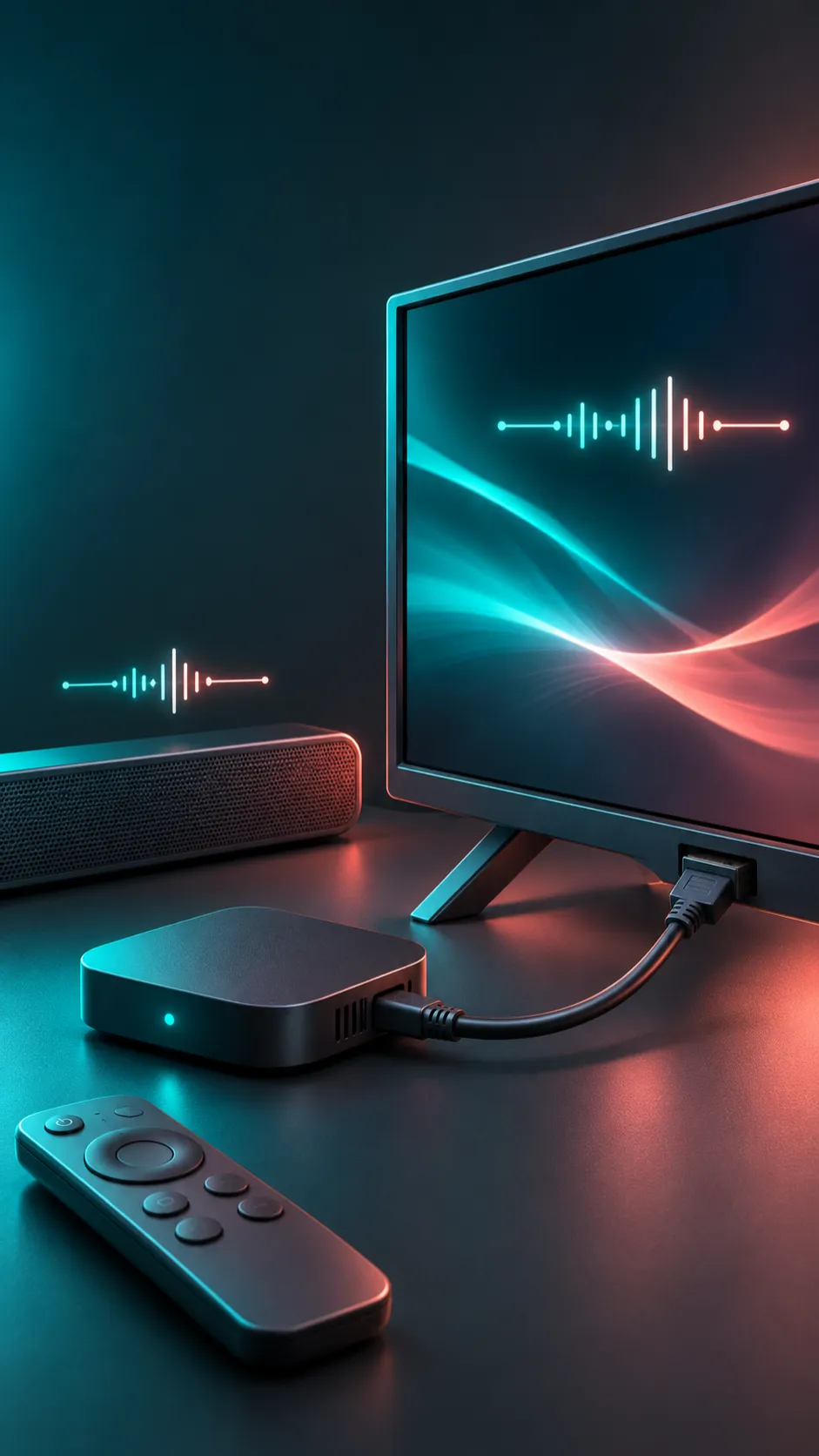
Names and menu availability vary by model and software version. These routes come from the manufacturers’ support instructions; if a listed control does not appear on your device, check its current manual rather than installing random tools.
Fire TV / Firestick
On supported Fire TV devices, open Settings → Display & Sounds → Audio → AV Sync Tuning. Amazon’s test uses a bouncing ball, flash, and tone to help you adjust the timing. Amazon notes that the slider is not available on every Fire TV Smart TV. If you use Alexa Home Theater with Echo speakers, look for Lip Sync Tuning in the Alexa Home Theater settings instead.
Google TV Streamer / Chromecast casting
Google recommends restarting the Google TV Streamer from Settings → System → Restart, or by disconnecting its power cable for a minute. For Google TV Streamer, check Display and sound → Audio options → Output format, then compare automatic output with the formats supported by your equipment. Google also suggests testing without Dialogue enhancement, Volume leveller, or surround processing when relevant. If you are casting from a browser, stop casting and begin a fresh session first.
Apple TV 4K
If you hear latency or echo between wired and wireless speakers, Apple TV 4K includes Settings → Video and Audio → Calibration → Wireless Audio Sync. Follow the instructions using a compatible iPhone close to the TV speakers. This feature targets synchronization between wired and wireless audio paths; it is not a universal repair for every IPTV source file.
Roku Streambar and other soundbars
Roku recommends isolating the problem by changing titles and input devices, then inspecting the TV’s audio delay controls. Depending on the equipment, testing PCM output or reducing video processing can help identify what creates the mismatch. For another brand of soundbar, use that model’s official manual for the correct ARC/eARC and lip-sync controls.
Quick diagnosis: match the symptom to the next test
| What you notice | First thing to test | Best next direction |
|---|---|---|
| Dialogue lags in every app | Switch to TV speakers | Check soundbar, audio format, or TV delay adjustment |
| Only one IPTV channel lags | Try another channel and device | Report the affected stream if the issue follows the source |
| Sound lags only on Bluetooth | Use wired or built-in audio | Investigate wireless audio latency and calibration |
| Delay starts after changing formats | Compare compatible automatic/PCM output | Review surround, receiver, and passthrough settings |
| Picture and sound gradually drift | Restart the title; compare another source | Investigate player, source timing, or playback stability |
| Problem appears after an update | Restart and check newer app/device fixes | Review recent settings and contact the app developer |
How to keep the sound and picture in sync
Once you find the combination that works, keep it simple. A complicated chain of Bluetooth speakers, receivers, TV audio enhancements, and video post-processing gives you more places for delay to appear. You do not have to remove useful features forever—just enable them again one at a time after establishing a working baseline.
- Keep the streaming device, IPTV player, and television software reasonably up to date.
- Record the audio output format and sync offset that work with your soundbar.
- Use compatible HDMI/ARC/eARC connections recommended by the hardware manufacturer.
- Keep a separate, authorized streaming app available for a quick comparison when a problem returns.
- Test several titles before concluding that the television, player, or internet connection is at fault.
And one more thing: changing the IPTV subscription or buying a faster router will not automatically fix a constant lip-sync delay. Diagnose first. Spend money only when you have evidence that the hardware or connection is actually the problem.
Frequently asked questions
Why does IPTV sound come before the picture?
Video processing can take longer than audio processing, especially with picture-enhancement settings or complex connected equipment. Test the TV’s built-in speakers and its A/V sync control to see whether the offset originates in the hardware chain.
Why is audio behind the video on my Firestick?
A source issue, an audio-format mismatch, or external sound processing are possible reasons. On supported Fire TV devices, Amazon offers an AV Sync Tuning tool under Display & Sounds → Audio. Compare another app before adjusting the slider.
Can I fix IPTV audio delay in the IPTV player app?
Some apps offer their own audio-offset controls; others do not. If yours has one, adjust it in small steps and test a second source. If every app is delayed, a system-level correction is usually a more sensible place to start.
Is a soundbar causing the lip-sync issue?
It can, but the soundbar is not automatically at fault. Test using only TV speakers. If the problem disappears, review soundbar processing, connections, and audio-delay settings using the soundbar’s manual.
Will PCM audio improve synchronization?
PCM/stereo can be a helpful compatibility test on some setups because it avoids certain surround-sound processing paths. It does not guarantee a fix, and you may temporarily lose surround sound or Atmos features.
Does internet speed cause audio and video to go out of sync?
An unstable stream can sometimes disrupt playback or allow timing to drift. However, a fixed delay that occurs in several apps is often better investigated through device processing and audio routing first. Raw download speed alone does not diagnose lip sync.
Does Apple TV Wireless Audio Sync fix every IPTV problem?
No. Apple’s Wireless Audio Sync calibration is designed to align wired and wireless speaker output. A single improperly timed stream may still require action from the content provider.
When should I contact the streaming provider?
Contact the legitimate provider if the same individual channel or video remains out of sync after restarting playback and trying a second device, while other authorized sources work normally. Include the title, time, device, and app version.
Manufacturer references
The device-menu guidance above is based on official support documentation. Menu labels may change after software updates.